css ヘルパー
hono/css CSS ヘルパーは Hono のビルトイン CSS in JS(X) ツールです。
JavaScript で css テンプレートリテラルを使うことで CSS in JSX を実現できます。 css の戻り値はクラス名で、 class 属性の値に設定できます。 <Style /> コンポーネントには CSS のコードが含まれます。
インポート
import { Hono } from 'hono'
import { css, cx, keyframes, Style, createCssContext } from 'hono/css'
css Experimental
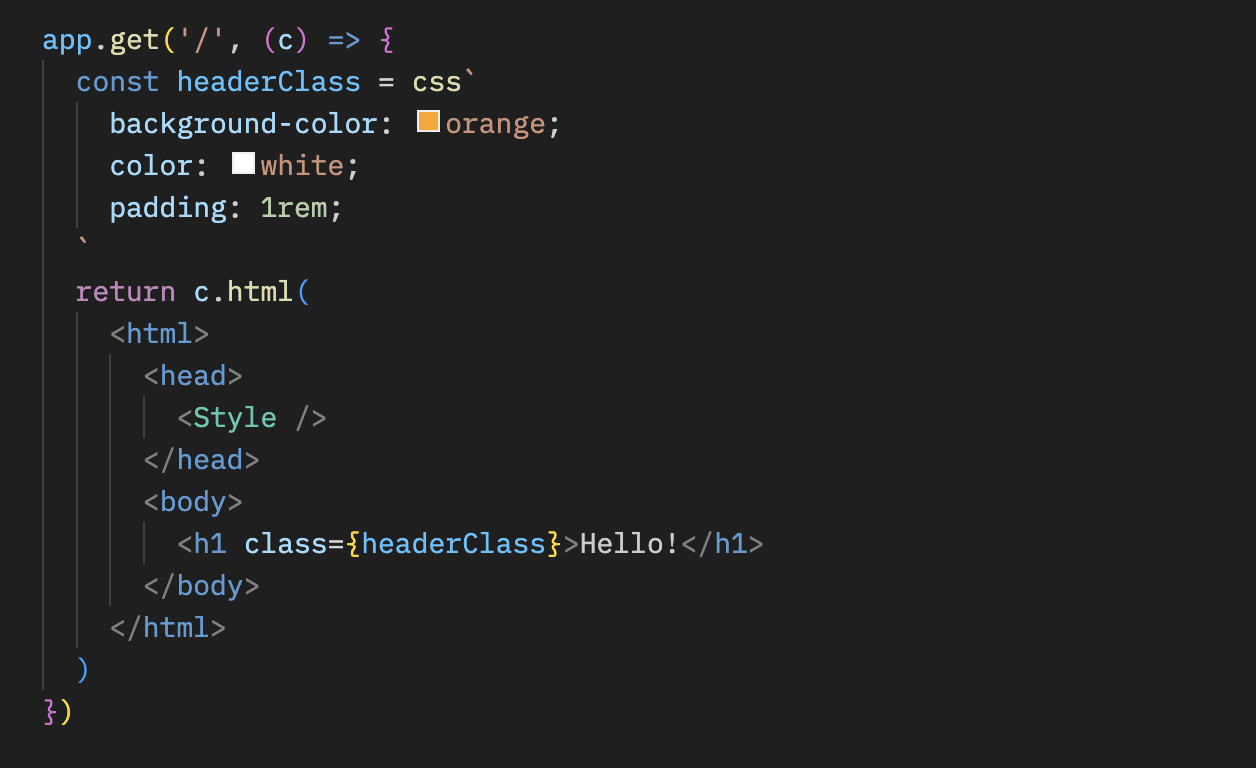
css テンプレートリテラル内に CSS を記述できます。 この例では、 headerClass を class 属性の値として使用します。 <Style /> には CSS コードが含まれているので、追加することを忘れないでください。
app.get('/', (c) => {
  const headerClass = css`
    background-color: orange;
    color: white;
    padding: 1rem;
  `
  return c.html(
    <html>
      <head>
        <Style />
      </head>
      <body>
        <h1 class={headerClass}>Hello!</h1>
      </body>
    </html>
  )
})
:hover などの擬似クラスも & 入れ子セレクター を用いてスタイリングできます:
const buttonClass = css`
  background-color: #fff;
  &:hover {
    background-color: red;
  }
`
拡張
クラス名を埋め込むことで CSS の定義を拡張できます。
const baseClass = css`
  color: white;
  background-color: blue;
`

const header1Class = css`
  ${baseClass}
  font-size: 3rem;
`

const header2Class = css`
  ${baseClass}
  font-size: 2rem;
`
また、 ${baseClass} {} 構文によってネストされたクラスが実現できます。
const headerClass = css`
  color: white;
  background-color: blue;
`
const containerClass = css`
  ${headerClass} {
    h1 {
      font-size: 3rem;
    }
  }
`
return c.render(
  <div class={containerClass}>
    <header class={headerClass}>
      <h1>Hello!</h1>
    </header>
  </div>
)
グローバルなスタイル
:-hono-global 疑似セレクタを用いることでグローバルなスタイルを定義できます。
const globalClass = css`
  :-hono-global {
    html {
      font-family: Arial, Helvetica, sans-serif;
    }
  }
`

return c.render(
  <div class={globalClass}>
    <h1>Hello!</h1>
    <p>Today is a good day.</p>
  </div>
)
または、 <Style /> コンポーネントに css リテラルを用いて CSS を書くこともできます。
export const renderer = jsxRenderer(({ children, title }) => {
  return (
    <html>
      <head>
        <Style>{css`
          html {
            font-family: Arial, Helvetica, sans-serif;
          }
        `}</Style>
        <title>{title}</title>
      </head>
      <body>
        <div>{children}</div>
      </body>
    </html>
  )
})
keyframes Experimental
keyframes テンプレートリテラルを用いて @keyframes の内容を書くことができます。 この例では、 fadeInAnimation がアニメーションの名前になります。
const fadeInAnimation = keyframes`
  from {
    opacity: 0;
  }
  to {
    opacity: 1;
  }
`
const headerClass = css`
  animation-name: ${fadeInAnimation};
  animation-duration: 2s;
`
const Header = () => <a class={headerClass}>Hello!</a>
cx Experimental
cx は2つのクラス名を統合します。
const buttonClass = css`
  border-radius: 10px;
`
const primaryClass = css`
  background: orange;
`
const Button = () => (
  <a class={cx(buttonClass, primaryClass)}>Click!</a>
)
また、クラス以外のシンプルなセレクタも統合できます。
const Header = () => <a class={cx('h1', primaryClass)}>Hi</a>Secure Headers ミドルウェアと組み合わせて使用する
Secure Headers ミドルウェアと CSS ヘルパーを組み合わせて使用したいとき、 nonce 属性 を <Style nonce={c.get('secureHeadersNonce')} /> のように使用することによって CSS ヘルパーによってもたらされる Content-Security-Policy の問題を回避できます。
import { secureHeaders, NONCE } from 'hono/secure-headers'

app.get(
  '*',
  secureHeaders({
    contentSecurityPolicy: {
      // Set the pre-defined nonce value to `styleSrc`:
      styleSrc: [NONCE],
    },
  })
)

app.get('/', (c) => {
  const headerClass = css`
    background-color: orange;
    color: white;
    padding: 1rem;
  `
  return c.html(
    <html>
      <head>
        {/* Set the `nonce` attribute on the CSS helpers `style` and `script` elements */}
        <Style nonce={c.get('secureHeadersNonce')} />
      </head>
      <body>
        <h1 class={headerClass}>Hello!</h1>
      </body>
    </html>
  )
})
createCssContext Experimental
createCssContext は、カスタムコンテキストを持つ CSS ヘルパー関数 (css 、 cx 、 keyframes 、 viewTransition 、 Style) を作成します。 これを使用して、 style 要素の ID や生成されるクラス名をカスタマイズできます。
import { createCssContext } from 'hono/css'

const { css, cx, keyframes, Style } = createCssContext({
  id: 'my-app',
})
classNameSlug
デフォルトでは、 CSS クラス名は css-1234567890 の形式で生成されます。 classNameSlug 関数を渡すことで、これをカスタマイズできます。
この関数は3つの引数を受け取ります:
hash- デフォルトで生成されたクラス名 (例:css-1234567890)label- CSS テンプレートの先頭にある/* comment */から抽出されたもの (なければ空文字列)css- ミニファイされた CSS 文字列
const { css, Style } = createCssContext({
  id: 'my-styles',
  classNameSlug: (hash, label) => (label ? `h-${label}` : hash),
})

const heroClass = css`
  /* hero-section */
  background: blue;
`
// Generated class name: "h-hero-section"
onInvalidSlug
classNameSlug 関数が無効な CSS クラス名を返した場合、デフォルトでは警告がログに出力されます。 この挙動は onInvalidSlug でカスタマイズできます。
const { css, Style } = createCssContext({
  id: 'my-styles',
  classNameSlug: (hash, label) => label || hash,
  onInvalidSlug: (slug) => {
    throw new Error(`Invalid CSS class name: ${slug}`)
  },
})
セキュリティ
CSS Helper は CSS を記述するための API です。 他の CSS-in-JS ライブラリと同様に、補間された値は 生の CSS として挿入されます。 HTML への脱出 (引用符、バックスラッシュ、 </) はブロックされますが、 { 、 } 、 ; は有効な CSS であるためそのまま通過します。
WARNING
CSS Helper は他の raw シンク (html 、 raw 、 rawCssString) と同様に扱ってください。信頼できない入力を直接渡さないでください。 渡すと CSS インジェクションが可能になります。 まず許可リストに対して検証してください。
const ALLOWED_COLORS = ['red', 'green', 'blue']
const color = ALLOWED_COLORS.includes(input) ? input : 'black'
const headerClass = css`
  color: ${color};
`
Tips
VS Code を使用している場合は、 vscode-styled-components を使用することによって CSS タグ付きリテラルにシンタックスハイライトと IntelliSense が提供されます。